How to Hide the WordPress Uploads Folder When It’s Publicly Accessible
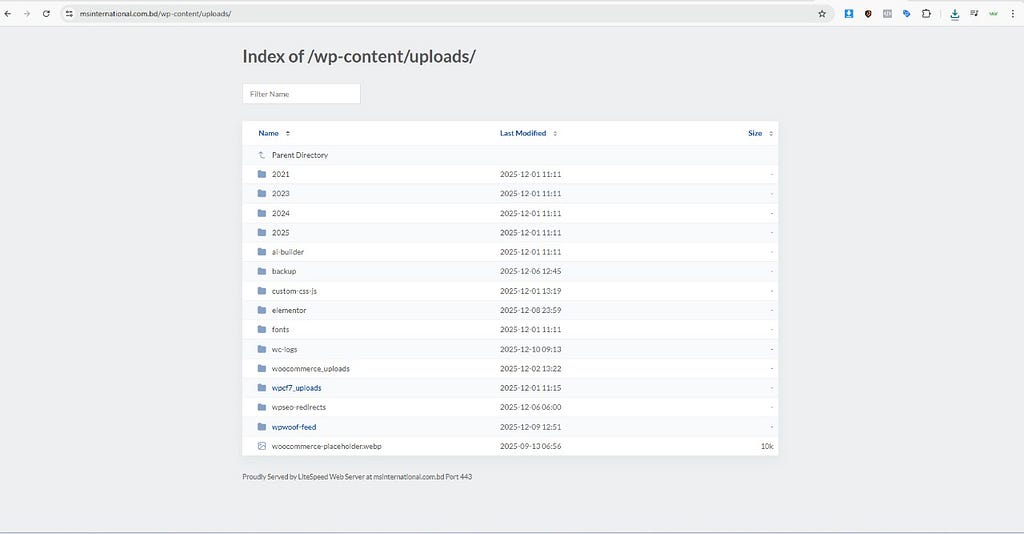
Many WordPress websites face a common security issue:
the wp-content/uploads folder is publicly accessible.
This means anyone can open a browser and view your files simply by visiting:
yourwebsite.com/wp-content/uploads/
This exposes all images, PDFs, backups, logs, and sometimes even sensitive files if mistakenly uploaded.
For hackers, this becomes an easy doorway to gather information about your site.
In this blog, you’ll learn why this happens, why it’s dangerous, and how to hide the uploads folder completely in just a few simple steps.
🔍 Why Public Uploads Folder Is Dangerous
If your uploads folder is visible, it can lead to:
✔ Unauthorized access to your media files
✔ Exposure of backup or plugin-related files
✔ Hackers analyzing your site structure
✔ Reduced overall security
✔ Potential SEO issues due to duplicate or sensitive files being crawled
So, hiding or securing the uploads folder is extremely important.
🛠️ 4 Reliable Ways to Hide the WordPress Uploads Folder
✅ 1. Disable Directory Browsing via .htaccess (Easiest Method)
Go to your hosting file manager:
public_html → wp-content → uploads → .htaccess
Create a new .htaccess file or open the existing one and add:
Options -Indexes
This immediately disables directory listing — users will no longer see your folder contents.
✅ 2. Add a Blank index.php File
Inside the uploads folder, create a file named index.php with the following content:
<?php
// Silence is golden.
Now, if anyone tries to browse the folder, they’ll see a blank page instead of your files.
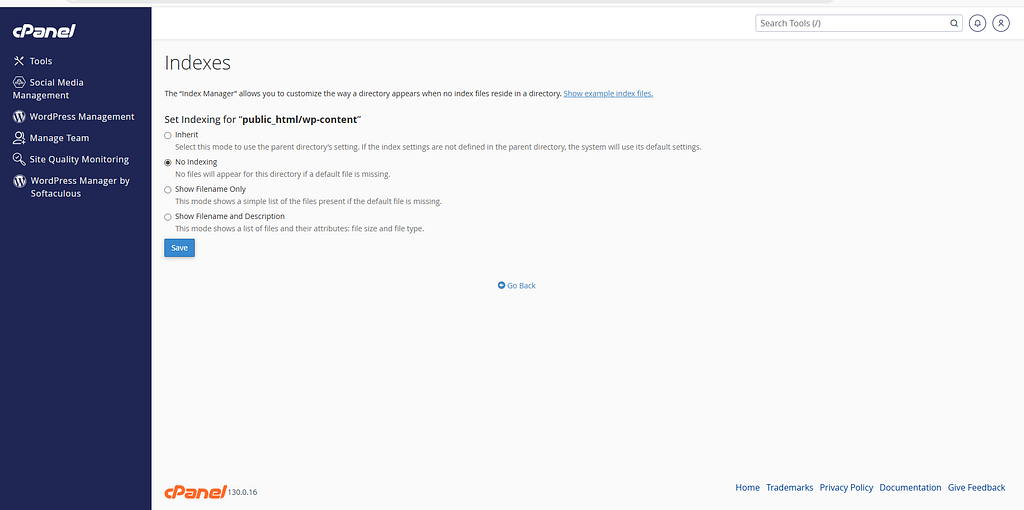
✅ 3. Disable Indexing via cPanel (If Available)
If your hosting uses cPanel:
- Go to Indexes
- Select wp-content/uploads
- Choose No Indexing
This prevents any folder listing automatically.
✅ 4. Use a WordPress Security Plugin
Some plugins can disable directory browsing for you:
✔ All In One WP Security
Go to:
WP Security → File System Security → Disable Directory Browsing
✔ Yoast SEO
Go to:
Tools → File Editor → .htaccess
Add this:
Options -Indexes
Plugins handle these rules safely and ensure your folder stays secure.
🧪 How to Check If It’s Working
Open your browser and visit:
yourwebsite.com/wp-content/uploads/
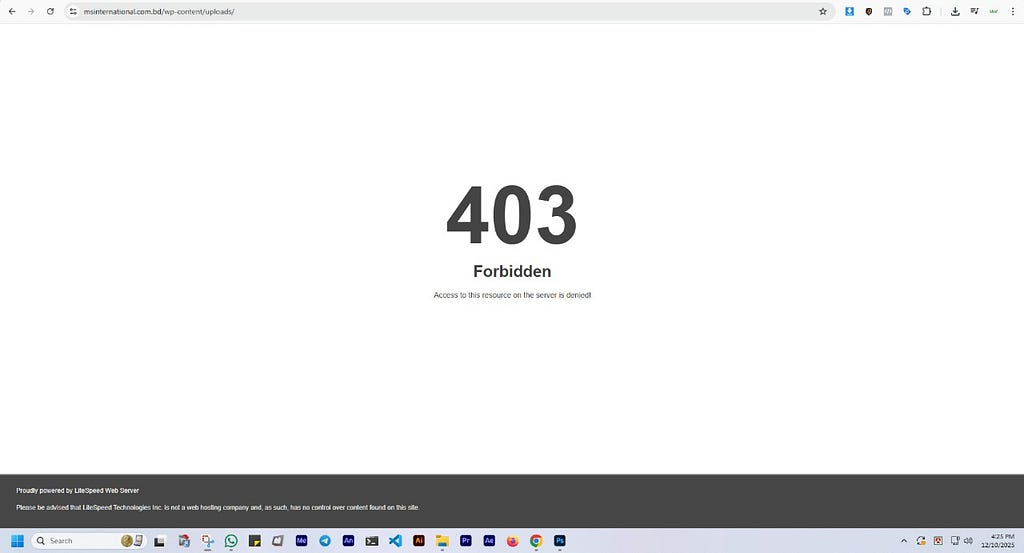
If it’s properly secured, you will see:
✔ 403 Forbidden
or
✔ A blank page
This means your uploads folder is no longer publicly accessible.
🛡️ How to Hide the WordPress Uploads Folder When It’s Publicly Accessible was originally published in System Weakness on Medium, where people are continuing the conversation by highlighting and responding to this story.