Using diff to find the one changed line between two large files and why spotting the difference between a known-good baseline and a current state is a foundational skill in security operations.
Introduction
Day 17. Bandit Level 17 to Level 18. The private key retrieved in Day 16 is now the credential for this session. No password prompt. No typing. Just the key file, the right permissions and an SSH connection that authenticates silently. Once inside, the challenge is straightforward in concept but important in execution: two files, nearly identical, one line different between them. Find it.
This level introduces the diff command, a tool that compares two files and outputs only the lines that differ between them. The concept of diffing a current state against a known-good baseline is one of the most fundamental techniques in security work. Configuration audits, malware analysis, incident response and change management all rely on the same underlying idea: compare what is there now to what was there before and look at what changed.
By the end of this article you will know how to read diff output, understand what each symbol means and apply the baseline comparison mindset to real security investigation work.
Level Objective
The password for the next level is in passwords.new and is the only line that has been changed between passwords.old and passwords.new. Both files are 3300 bytes and contain many lines. The diff command identifies the exact line that differs. The password is the line from passwords.new. The commands suggested by OverTheWire include cat, grep, ls and diff.
Approach
I started on my local Kali machine. The RSA private key returned by the server in Day 16 had been saved locally. I opened it in nano to confirm the content was intact, set the correct permissions and connected:
nano ~/bandit17.key
chmod 600 ~/bandit17.key
ssh -i ~/bandit17.key bandit17@bandit.labs.overthewire.org -p 2220
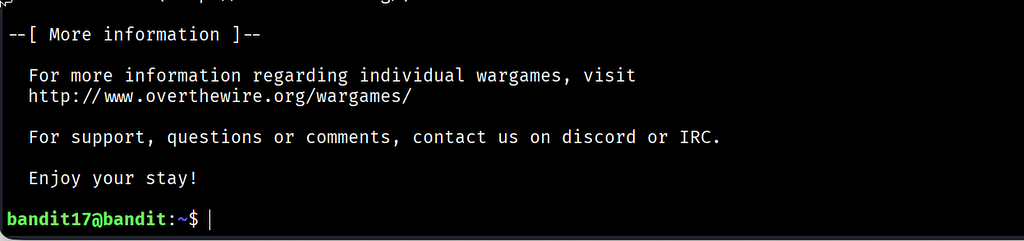
The Bandit ASCII art banner loaded and the prompt changed to bandit17@bandit:~$. No password prompt appeared.
I ran ls -la to understand the home directory before touching anything:
ls -la
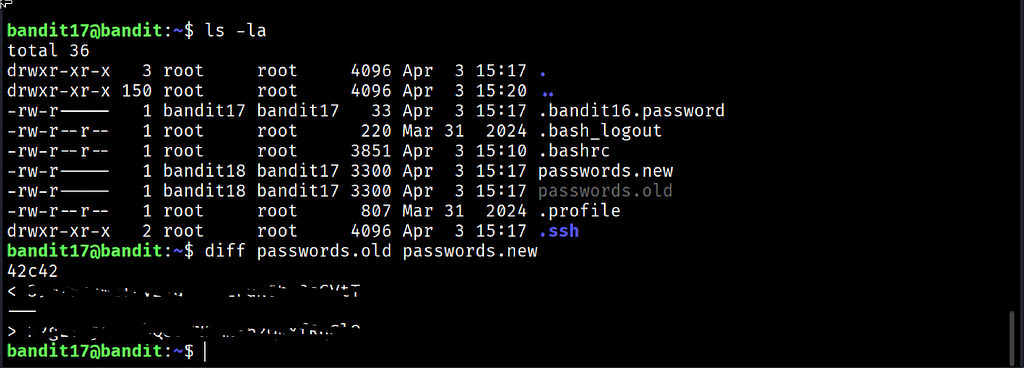
Several files were visible. .bandit16.password was a hidden file owned by bandit17 confirming the previous level's credential was stored locally. Two files stood out: passwords.new and passwords.old, both 3300 bytes, owned by bandit18 with group bandit17. Two large password list files of identical size with a single line different between them.
I ran diff with the old file first and the new file second:
diff passwords.old passwords.new
The output returned three lines:
42c42
< [password from passwords.old]
---
> [password from passwords.new]
The 42c42 notation confirmed that line 42 was the only difference between the two files. The < line was the old password being replaced. The > line was the new password in passwords.new. That > line is the credential for Level 18.
Commands Used
# On local Kali machine: confirm key content, set permissions and connect
nano ~/bandit17.key
chmod 600 ~/bandit17.key
ssh -i ~/bandit17.key bandit17@bandit.labs.overthewire.org -p 2220
# List the home directory with full detail
ls -la
# Compare the two password files and return only what changed
diff passwords.old passwords.new
Command Breakdown
diff passwords.old passwords.new Compares two files line by line and outputs only the lines that differ. When no differences exist it produces no output. When differences exist it shows exactly which lines changed, which were removed and which were added. Running this against two 3300-byte files with hundreds of lines returns the answer in under a second.
42c42 The diff notation describing the change. The number before c is the line number in the first file. The number after c is the line number in the second file. The letter c means the line was changed. Other possible letters are a for added and d for deleted.
< Lines preceded by < come from the first file listed in the command, which is passwords.old. This is the line that existed before. In security terms this represents the previous known state.
> Lines preceded by > come from the second file listed in the command, which is passwords.new. This is the line that exists now. The password for Level 18 is on this line.
--- The separator that divides the old lines from the new lines in the diff output. It has no content significance. It is purely a visual divider.
Lesson Learned
The main technical takeaway is that diff makes the needle-in-a-haystack problem disappear. Two files with hundreds of lines each produced three lines of output identifying exactly what changed and where. Without diff, finding the one different line manually would have required reading through every entry in both files and comparing them side by side. With diff it took one command and one second.
The 42c42 notation is worth committing to memory. Line changed, same position in both files. Once you understand that notation you can read any diff output immediately without having to reason through it. a means something was added, d means something was deleted, c means something was changed.
The OverTheWire note about seeing Byebye! when connecting to bandit18 is also worth keeping in mind. If the login succeeds but the connection closes immediately with that message, the level is actually solved. That behaviour is intentional and it is the setup for the next level.
- diff file1 file2 — compare two files and show only what differs
- diff -u file1 file2 — unified format showing surrounding context lines
- diff -y file1 file2 — side-by-side format for visual comparison
- diff -q file1 file2 — report only whether files differ without showing the content
- diff -r dir1 dir2 — compare entire directories recursively
🔴 SOC Analyst Insight
Baseline comparison is one of the most practical techniques in security operations. When a system is suspected to be compromised, one of the first questions is: what changed? Comparing the current state of configuration files, password files, scheduled tasks or system binaries against a known-good baseline surfaces exactly what was modified. The diff command handles that comparison for any text-based file in seconds.
# Compare a current sudoers file against a known-good backup to detect unauthorised changes
diff /etc/sudoers.bak /etc/sudoers
The command above compares the current sudoers file against a saved baseline. Any lines added by an attacker to escalate privileges will appear in the > section of the diff output. In a post-compromise investigation this single command can confirm whether privilege escalation was attempted through sudoers modification and show exactly what was added. The same approach applies to cron jobs, SSH authorised keys, PAM configuration and any other text-based system file where changes indicate potential compromise.
Key Takeaway
diff reduces a comparison problem of any scale to exactly the lines that matter. Two files with hundreds of entries become a single result in one command. Understanding the c, a and d notation and knowing which symbol marks each file makes the output immediately readable. The baseline comparison mindset that this level teaches, comparing a current state against a known-good reference, is one of the most transferable skills in this series and one that applies across configuration auditing, malware analysis and incident response in equal measure.
30-Day Cybersecurity Learning Journey — Progress
🟢 Open Day — Setup & Series Introduction  | OverTheWire Bandit
✅ Day 0.   — Bandit Level 0               | First Login
✅ Day 1.   — Bandit Level 1 → 2           | Special Characters
✅ Day 2.   — Bandit Level 2 → 3           | Spaces in Filenames
✅ Day 3.   — Bandit Level 3 → 4           | Hidden Files
✅ Day 4.   — Bandit Level 4 → 5           | File Types
✅ Day 5.   — Bandit Level 5 → 6           | find with Properties
✅ Day 6.   — Bandit Level 6 → 7           | find across Filesystem
✅ Day 7.   — Bandit Level 7 → 8           | grep
✅ Day 8.   — Bandit Level 8 → 9           | sort and uniq
✅ Day 9.   — Bandit Level 9 → 10          | strings and grep
✅ Day 10.  — Bandit Level 10 → 11         | base64
✅ Day 11.  — Bandit Level 11 → 12         | ROT13 and tr
✅ Day 12.  — Bandit Level 12 → 13         | hexdump and compression
✅ Day 13.  — Bandit Level 13 → 14         | SSH keys
✅ Day 14.  — Bandit Level 14 → 15         | Netcat
✅ Day 15.  — Bandit Level 15 → 16         | SSL and OpenSSL
✅ Day 16.  — Bandit Level 16 → 17         | Port Scanning
✅ Day 17.  — Bandit Level 17 → 18         | diff  ← today
⬜ Day 18.  — Bandit Level 18 → 19         | coming next
Follow along with the series as I document each level, command and lesson learned.
The difference between what was and what is now is where every investigation begins.
OverTheWire Bandit Walkthrough — Level 17 → 18 | 30-Day Cybersecurity Learning Journey (Day 17) was originally published in System Weakness on Medium, where people are continuing the conversation by highlighting and responding to this story.